Select an image to view it larger.
Cheat Crooked Arms for Delta Force
Buy a working private cheat Crooked Arms for the game Delta Force Hawk Ops
Global keys — work worldwide.
Payment with a Binance card may be available for selected products. Contact us privately before buying to check availability and agree the details.
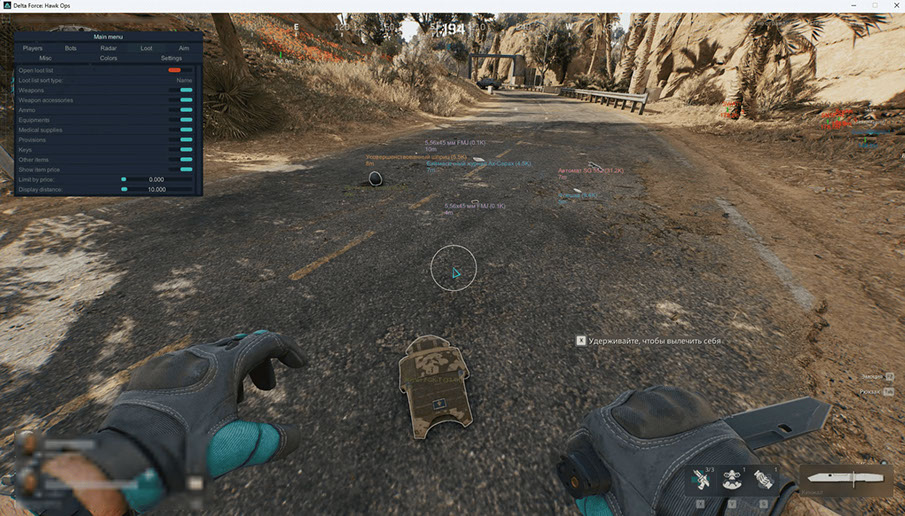
Crooked Arms for Delta Force: Hawk Ops combines player and bot ESP, Radar, Loot ESP, a configurable Aimbot and vehicle display. Item filters cover containers, keys and death boxes from players and bots.
System Requirements
What statuses mean
🔔 Cheat statuses update automatically from our Telegram bot via developer notifications — follow the news there. Many cheats update themselves after game changes, so a “Checking” status does not mean the cheat is broken — it is just uncertainty until confirmed. Not sure? Ask in the site chat or on our Contacts page.
Features
PLAYERS
- Only visible / Display only visible players
- My team players / Show teammates
- Name / Display player names
- Team / Display players' team
- Player level (Level)
- Player category (Category)
- Weapon in hands / Display weapons in players' hands
- Dead players (Corpse)
- Line / Display lines to players
- Box type / Select the type of displayed 2D square around the players
- Disabled / Disable the display of a 2D square around players
- 2D / Display 2D square around players
- 3D / Display 3D square around players
- Skeleton type / Select the type of player skeleton displayed
- Disabled / Disable display of player skeletons
- Default / Display standard skeleton type
- Health / Display the player's skeleton depending on the amount of health
- Skeleton line thickness / Set the thickness of the displayed player skeleton
- Skeleton display distance / Set the distance of the displayed skeletons of players
- Distance / Set the display distance of players
- Display distance / Display distances to players
LOOT ESP
- Open loot list / Open loot list
- Loot list sort type / Select type of loot sorting
- Name / Sort list by name
- Price / Sort list by price
- Weapons/Display weapons
- Weapon accessories / Display weapon adapters
- Ammo / Display ammo
- Equipments / Display equipment
- Medical suppliers / Display medicine
- Provisions / Display provisions.
- Keys: / Display keys
- Miscellaneous items (Miscellaneous)
- Containers (Containers)
- Other items / Display other items
- Player and bot death boxes (Dead boxes)
- Item quality colors (Use item quality color)
- Short item names (Use item short name)
- Show item price / Display item price
- Limit by price / Limit by price
- Display distance
MISC
- Draw crosshair / Display crosshair in the center of the screen
- Crosshair color / Change the color of the displayed crosshair
- Show vehicles (Show vehicles)
- Vehicle health (Vehicle health)
- Vehicle display distance (Vehicle display distance)
SETTINGS
Hotkey to disable loot / Set a key to disable loot display
Menu opening hotkey / Set the key for opening and closing the cheat menu in the game, the default key is "HOME"
BOTS
- Only visible / Display only visible bots
- Name / Display bot names
- Bot level (Level)
- Bot category (Category)
- Weapon in hands / Display weapons in the hands of bots
- Dead bots (Corpse)
- Line / Show lines to bots
- Box type / Select the type of displayed 2D square around the bots
- Disabled / Disable display of 2D square around bots
- 2D / Display 2D square around bots
- 3D / Display 3D square around bots
- Skeleton type / Select the type of display of the bot skeleton
- Disabled / Disable display of player skeletons
- Default / Display standard skeleton type
- Health / Display the bot's skeleton depending on the amount of health
- Skeleton line thickness / Set the thickness of the displayed bot skeleton
- Skeleton display distance / Set the distance of the displayed skeletons of bots
- Distance / Set the display distance of bots
- Display distance / Display distances to bots
RADAR
- Enable radar / Enable radar
- Show players / Display players on the radar
- Show bots / Display bots on the radar
- Display distance / Set the radar operating distance
- Position by X / Set the radar position along the X axis
- Position by Y / Set the radar position along the Y axis
- Size / Set the size of the displayed radar
- Alpha / Set radar transparency
AIMBOT
- Enable aimbot / Enable aimbot
- Visibility check / Checking the visibility of the target for the aimbot
- Show snapline / Display the aiming line
- Smoothing (more > faster) / Set aimbot aiming smoothness
- Show fov / Display the radius of the aimbot, circle FOV
- Fov / Set the radius of the aimbot, circle FOV
- Distance / Set the aimbot's operating distance
- Bones selection / Selecting a body part for the aimbot to work
- Head / Head
- Neck/Neck
- Left elbow / Left elbow
- Right elbow / Right elbow
- Body / Body
- Pelvis / Pelvis
- Left knee / Left knee
- Right knee / Right knee
- Hotkey selection / Set a key to activate the aimbot; for the aimbot to work, the installed key must be pressed and held
COLORS
- Change color if (players / bots) is visible / Change the display color of visible players and bots
- Invisible players color / Set the display color of players not in view
- Visible players / bots color / Set the display color of visible players and bots
- Players color / Set the display color of players
- Bots color / Set the display color of bots
- Corpses color / Set the color for displaying corpses
- My team players color / Set team display color
- Knocked players color / Set the display color of knocked down players
- Selected items color / Set the display color of selected items
- Weapons color / Set weapon display color
- Weapon accessories color / Set the display color of weapon adapters
- Ammo color / Set ammo display color
- Equipments color / Set equipment display color
- Medical supplies color / Set medicine display color
- Provisions color / Set Provisions color
- Keys color / Set key display color
- Other items color / Set the display color of all other items
Customer Reviews
All reviewsFrequently Asked Questions
What features are included in Crooked Arms?
What payment methods are accepted?
How to contact support?
Payment is confirmed, but the product is missing. How long should I wait?
I have a key. Where are the download and instructions?
After payment you will receive detailed instructions on activation, launch and use of the software.
Instructions will be sent to the email address specified before payment.
You will also find a download link and necessary components for the software.
Cheat community
Cheat updates, detection status and help from other players — in our Telegram and Discord.