Play video 1
Select an image to view it larger.
Phoenix Rust Full
Phoenix Rust Full - aimbot and ESP
Global keys — work worldwide.
The functions are described according to the supplier's materials. Please check product compatibility and current status before purchasing.
Payment with a Binance card may be available for selected products. Contact us privately before buying to check availability and agree the details.
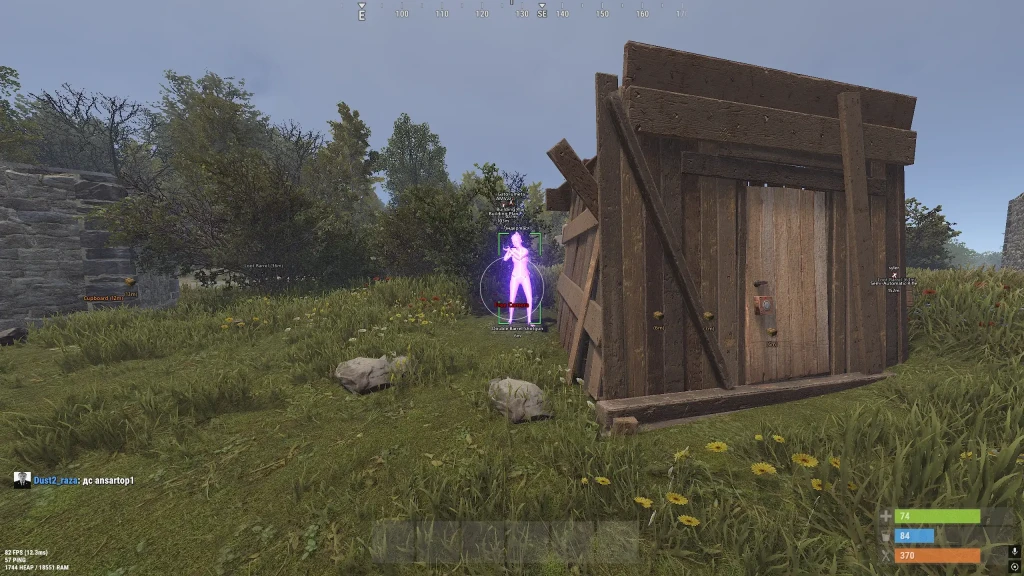
Phoenix Rust Full offers Vector Aim and Silent Aim with settings for FOV, smoothness, bone selection and target filtering. ESP is divided into players, NPCs, resources, buildings, traps, boxes, vehicles and loot; Separate settings are available for categories.
Chams changes the materials of models, Free Camera allows you to inspect the environment, Bright Night adjusts the night scene, Spider Man adds movement on vertical surfaces. Battle Mode hides unnecessary ESP elements; settings are saved in configurations.
System Requirements
What statuses mean
🔔 Cheat statuses update automatically from our Telegram bot via developer notifications — follow the news there. Many cheats update themselves after game changes, so a “Checking” status does not mean the cheat is broken — it is just uncertainty until confirmed. Not sure? Ask in the site chat or on our Contacts page.
Features
Aimbot
- Enable – enable/disable automatic guidance
- Mode – aimbot operating mode (vector, quiet)
- FOV – setting the target acquisition area for the aimbot
- FOV Circle – displaying the target acquisition area on the screen
- FOV Color – you can choose your own color for the aimbot’s circle
- Smooth – adjusting the smoothness of aiming at the target
- Bone Selection – selecting a body part to target
- Target NPC – aimbot will work on NPC
- Target Players – aimbot will work for players
- Ignore Teammates – exclusion of allies from the list of targets
- Target Wounded – targeting knocked players
- Target Lock – the aimbot sticks to the active target
- Visible Check – targeting only targets in the field of view
- Switch Delay – setting the delay before switching the aimbot to another target
- NoSpread – disable weapon spread
- Max Distance – setting the aimbot’s firing range for different purposes
NPC ESP (Bots)
- Enable – activates the tab for displaying bots
- NPC Name – displays NPC names
- NPC Distance – displays the distance to NPC
- NPC Held Item – displays an item in the hands of an NPC
- NPC Max Distance – setting the maximum distance for displaying NPCs
- NPC Text Size – adjusts the size of the NPC text
- NPC Box – displays boxes around NPCs
- NPC Box Color – setting the color of NPC boxes
- NPC Box Width – adjusting the thickness of the boxes
- NPC Box Outline – enable the outline of NPC frames
- NPC Skeleton – displays the NPC skeleton with adjustable color and line thickness
Traps ESP
- Enable – turn on/off display of traps
- Auto Turret ESP – display of automatic turrets
- Landmine ESP – mine display
- Flame Turret ESP – display of flamethrower turrets
- SAM Site ESP – display of air defense settings
- Shotgun Trap ESP – display of guntraps
- Drone ESP – display of drones
- Icons – display a trap icon next to the text
- Distance Filter – adjust the display distance for each trap
- Text Size – adjusts the text size for traps
- ESP Traps Color – ability to assign a different color for each category of traps
Vehicles ESP (Transport)
- Enable – enable display of transport
- Horses ESP – display of horses on the map
- Cars ESP – displaying cars on the map
- Motorboats ESP – display of motor boats
- RHIBs ESP – display of fast inflatable boats
- Tugboats ESP – display of tugboats
- Submarines ESP – display of submarines
- Minicopters ESP – display of minicopters
- Transport Helicopters ESP – display of transport helicopters
- Attack Helicopters ESP – display of combat helicopters
- Patrol Helicopters ESP – display of patrol helicopters
- Bradley APCs ESP – display of Bradley armored personnel carriers
- Trains ESP – display of trains
- Hot Air Balloons ESP – display of balloons
- Snowmobiles ESP – display of snowmobiles
- Motorbikes ESP – display of motorcycles
- Bicycles ESP – display of bicycles
- ESP Vehicles Color – the ability to assign your own color for each category of vehicle
- Distance Filter – adjusting the display distance for each type of transport
Exploits
- Spider Man – allows you to climb up without using stairs
- Free Camera – free movement of the camera separately from the character
- Camera Speed – setting the speed of movement of a free camera
- Camera Sensitivity – adjusting the sensitivity of free camera control
- Bright Night – turns on increased brightness at night
- Night Brightness – adjust the brightness level of the night environment
Players ESP
- Enable – activates the tab for displaying players
- Box Type – enable boxes around the player model (full, corners only)
- Box Width – adjusting the thickness of the frames around players
- Box Outline – contour outline of ESP frames
- Text Outline – text outline to improve readability
- Ignore Teammates – do not show the VH of players from the team
- Sleepers – show models of sleeping players
- Wounded – show knocked players
- Teammates – show allies
- Player Name – displays player names
- Player Distance – displays the distance to players
- Held Item – display of an item or weapon in the player’s hands
- Hotbar – list of items in the players’ quick slot (hotbar)
- Max Distance – adjusting the maximum distance for displaying players
- Text Size – setting the ESP text size
- Visibility Colors – display players in different colors depending on visibility
- Skeleton – displays the player’s skeleton with adjustable color and line thickness
- Chams – filling player models into the selected material or texture
- Chams Material – choice of material for VX chams
- Corpse – show bodies/backpacks of killed players
Resources ESP
- Enable – turn on/off display of resources
- Stone ESP – display of stone ore (with customizable color, icons, distance and text size)
- Metal ESP – display of metal ore (customizable)
- Sulfur ESP – display of sulfur ore (customizable)
- Hemp ESP – display of hemp (customizable)
- ESP Crate Color – ability to assign your own color for each category of resources
Buildings ESP
- Enable – turn on/off display of objects
- Cupboard ESP – display of cabinets (customizable)
- Workbench ESP – display of workbenches of different shooting ranges (configurable)
- Wooden Box ESP – display of wooden boxes (customizable)
- ESP Crate Color – the ability to assign a different color for each category of objects
Crates ESP (Crates)
- Enable – enable display of supply boxes
- Basic Crates ESP – display of regular crates
- Military Crates ESP – display of military crates
- Elite Crates ESP – display of elite crates
- Tool Crates ESP – display of tool boxes
- Medical Crates ESP – display of medical crates
- Food Crates ESP – displaying food crates
- Mine Crates ESP – displaying crates in mines
- Underwater Crates ESP – display of underwater crates
- Locked Crates ESP – display of locked boxes
- Loot Barrels ESP – display of barrels with loot
- Airdrop ESP – display of supplies from airdrop
- Distance Filter – adjusting the display distance for each type of box
- Icons – ability to enable an icon next to the text for some mailboxes
- ESP Crate Color – ability to assign your own color for each category of boxes
Loot ESP (Loot)
- Enable – enable display of items and loot
- Dropped Items ESP – displaying items on the ground
- Item Category Filter – filtering discarded items by category
- Item Icons – ability to enable or disable item icons
- Distance Filter – adjusting the display distance for each type of loot
- Text Size – adjusts the text size for each group of items
- Weapons
- Ammunition
- Armor and clothing
- Medicine
- Resources
- Components
- Tools
- Food and seeds
- Placeable objects
- Other items
Other Phoenix Rust Features
- Battle Mode – hides unnecessary ESP categories and leaves only the display of players (by bind)
- Font – select the font for the mod menu interface
- FPS Limit – setting a limit on the overlay refresh rate
- Config Save – saving the current configuration
- Config Load – loading a saved configuration
- Config Reset – reset configuration settings
Customer Reviews
All reviewsFrequently Asked Questions
What features are included in Phoenix Rust Full?
What payment methods are accepted?
How to contact support?
Payment is confirmed, but the product is missing. How long should I wait?
I have a key. Where are the download and instructions?
After payment you will receive detailed instructions on activation, launch and use of the software.
Instructions will be sent to the email address specified before payment.
You will also find a download link and necessary components for the software.
Cheat community
Cheat updates, detection status and help from other players — in our Telegram and Discord.